Confirm the local part first
Put the gateway device on a network that is allowed to reach the camera. Test the camera locally with its documented credentials and source. Discovery may not cross a guest network or VLAN, so an empty discovery list does not prove there are no cameras. If you know the supported address, add it explicitly. Check local network policy before changing it; a deliberate separation between devices may be protecting other equipment.
Pair the device deliberately
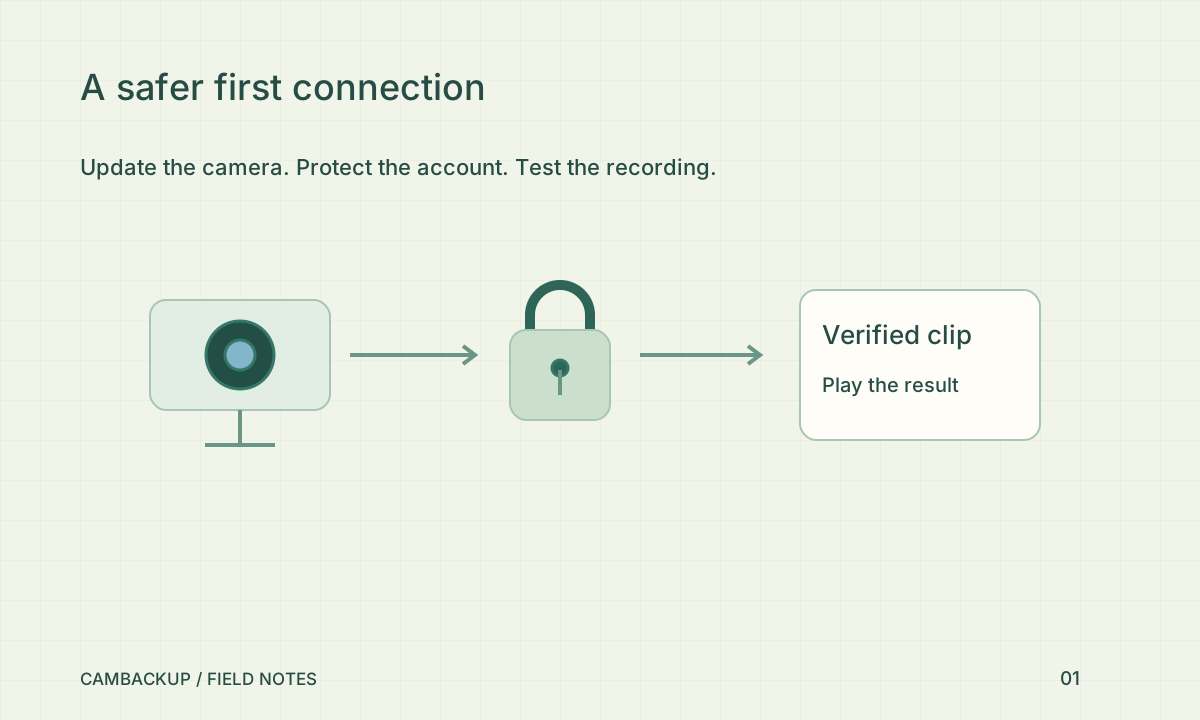
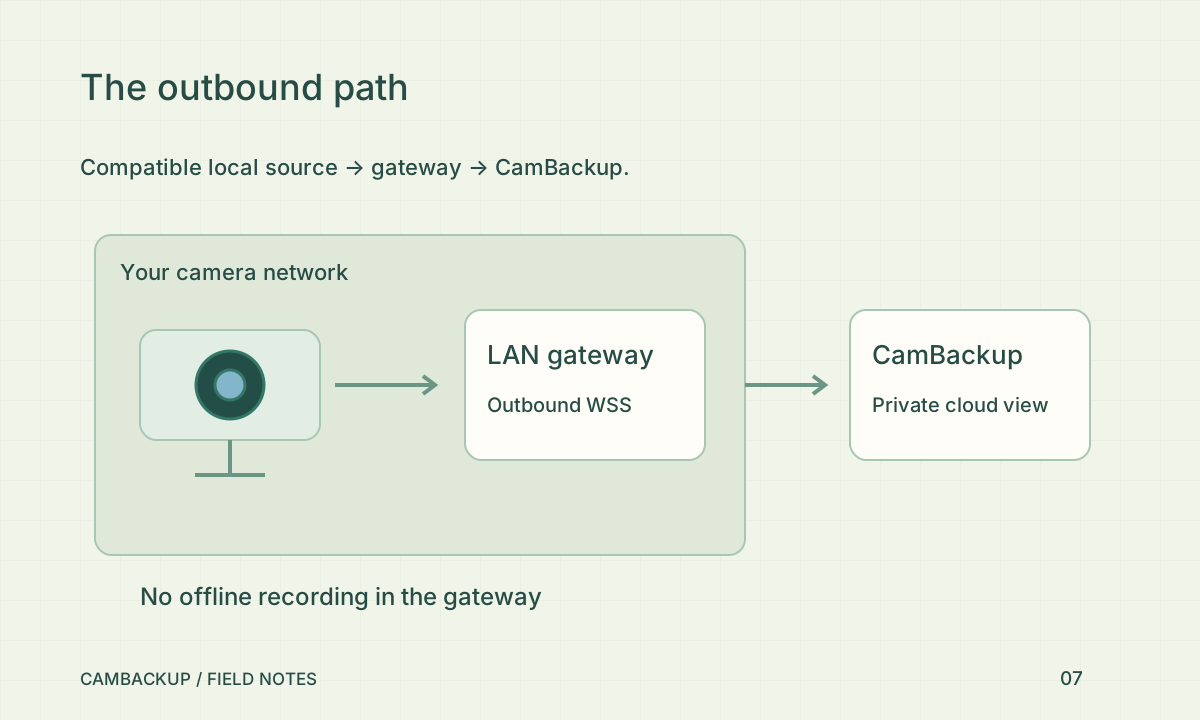
Choose the current Windows or Linux gateway package from the CamBackup gateway page and verify its checksum. Open its local dashboard, pair from an interactive CamBackup account session and import selected cameras. Camera credentials remain on that device. The cloud uses an outbound authenticated connection and explicit camera identifiers. New imports start with recording off, so check the name, view and recording entitlement before enabling cloud capture.
Keep the local dashboard local
The default dashboard binds to loopback. Treat remote exposure as a separate deployment decision requiring an HTTPS proxy and appropriate access controls. Do not put the dashboard directly on the public internet just to reach it from your sofa. The NCSC’s camera guidance cautions about remote-access settings such as automatic port opening; avoid changing router settings without understanding what becomes reachable. A gateway reduces the need to expose the camera’s own service publicly.
Plan for interruptions honestly
Loss of internet leaves a cloud recording gap. Gateway 0.2 can also keep local clips if you explicitly enable local recording beforehand and the camera, service and disk stay available. Those clips contain unmasked source video and audio and are not uploaded later. Check local retention and play a saved clip during a planned disconnect test. Power failure, disk failure and clip boundaries can still create gaps. Revoke a lost gateway from the account rather than assuming unplugging it invalidates its credential forever.
Sources & further reading
Sources reviewed . This article is part of the guide collection published together in October 2026. CamBackup workflow advice is our own; external guidance may change. Local privacy, employment and evidence rules depend on your situation.
Follow our step-by-step setup guides, check supported features and limits, or ask a setup question.