Record on your terms.
Continuous or finite capture, with your choice of quality, frame rate, audio and source-pixel privacy masks.
FROM LIVE PICTURE TO SAVED PROOF
Check a live view, find a saved moment on the timeline, and download the footage you need. Start with one camera and verify a recording you can play.
Connect your first cameraTHE TOOLS TO FIND AND KEEP A MOMENT
Live views, saved recordings and exports in one workspace. Use your browser or install the web app on a supported device.
Continuous or finite capture, with your choice of quality, frame rate, audio and source-pixel privacy masks.
Check connection health and opt in to email after a sustained recording outage and when capture recovers. Alerts report interruptions; they do not replace missing footage.
Capture JPEG snapshots from the camera. Turn saved footage into short animated previews and downloadable MP4 clips. Download an important clip to keep it beyond the recording history window.
Power and Business include scoped API tokens and MCP. A checkout, sensor or service can name an event and request a finite recording.
Read the API referencePower and Business let an eligible camera publish an approved live view with a widget. Revoke sharing when you’re done; cameras start private.
Google, email-link and password sign-in, with optional authenticator MFA and one-use recovery codes.
VISUAL EVIDENCE
Connect business events to private camera footage. Review a transaction, handover or delivery with the context your team needs.
Explore visual evidenceFROM LIVE FEED TO OFF-SITE FOOTAGE
Explore how each part works, then follow its setup guide and test your own camera.
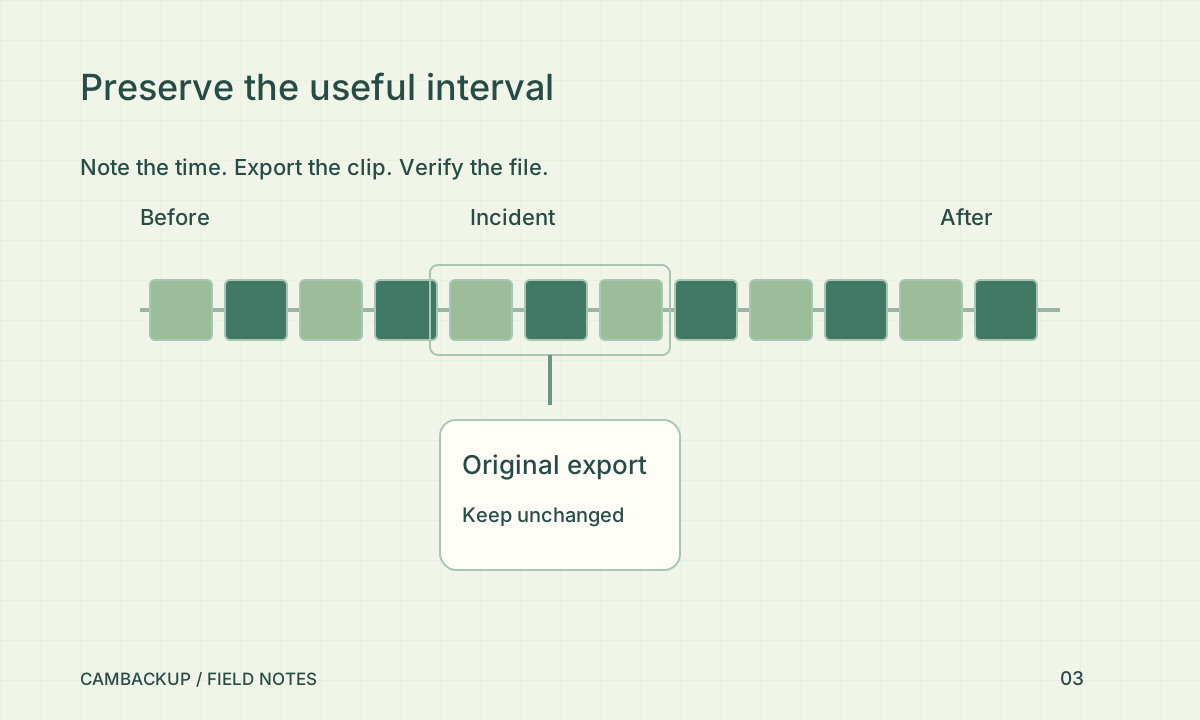
Browse footage recorded from your compatible live feed, find the time you need and export a clip. Your existing local recorder can continue recording alongside CamBackup.
CamBackup does not synchronize an existing NVR archive. An export cannot fill a recording gap.
Follow the setup guide →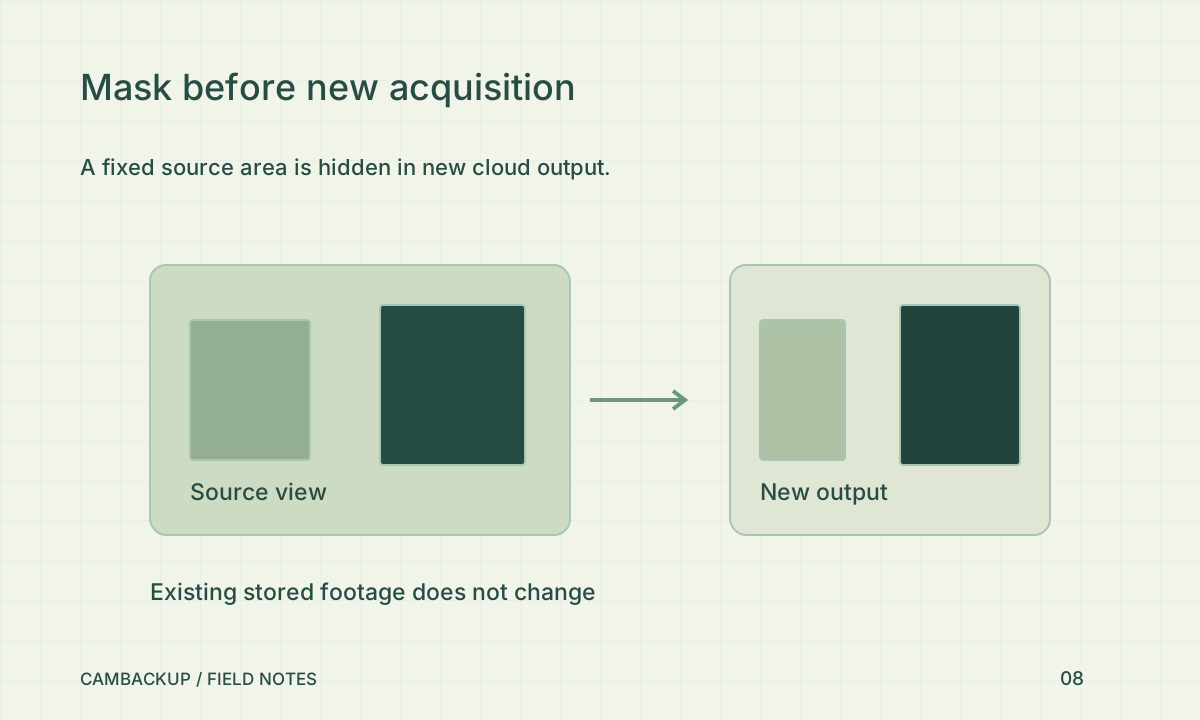
Cover parts of the picture with fixed opaque masks and choose whether new cloud footage includes audio. Pause capture before changing these settings, then check fresh video.
Masks do not change old footage or cover local gateway previews and recordings. Review them again if the camera moves.
Follow the setup guide →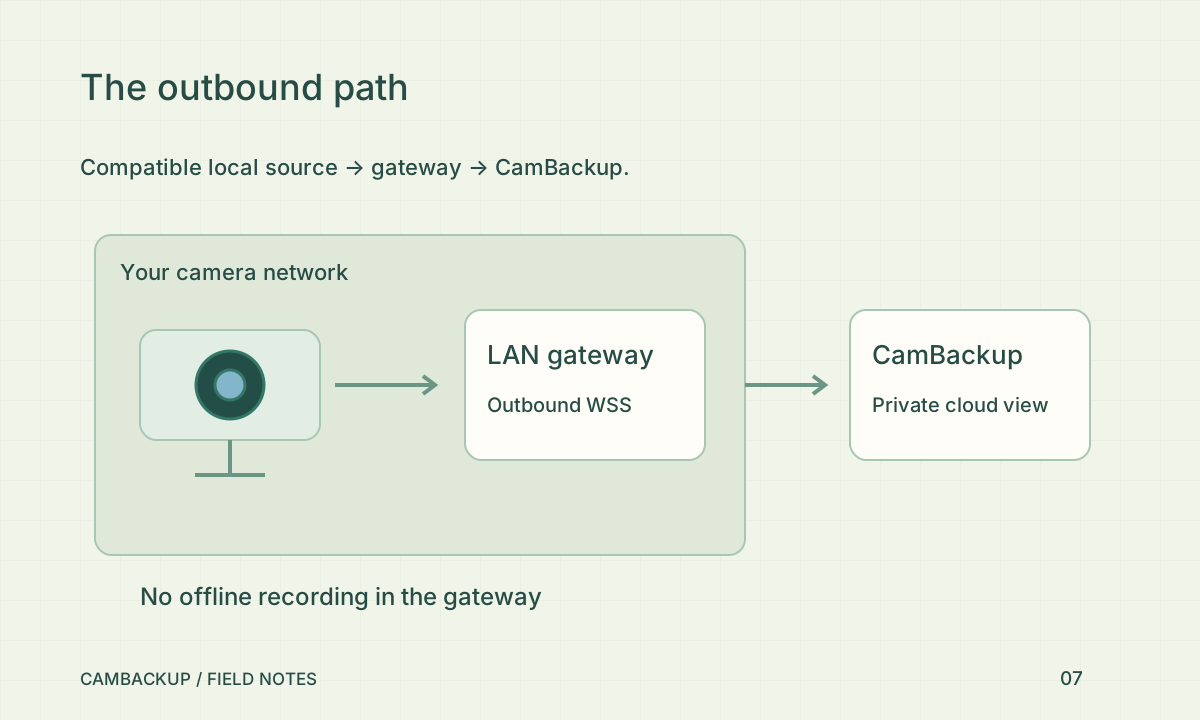
Run the outbound gateway on supported hardware at the camera site. Discover authorized ONVIF devices or add a supported stream, preview it locally and select the feeds to connect.
The gateway must remain on while forwarding. Optional local recording in version 0.2 stays on that device and is not uploaded to fill cloud gaps. Check platform availability and hardware capacity.
Follow the setup guide →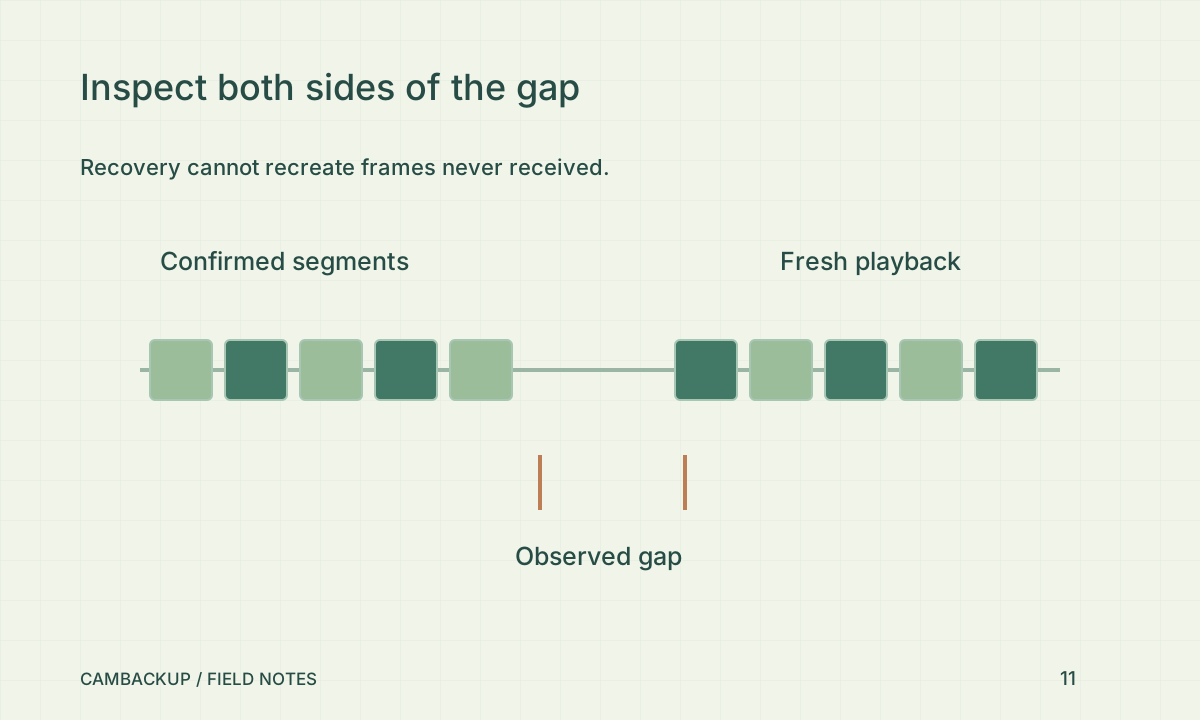
Check connection status and the recorded timeline. Opt into alerts for sustained recording connection failures and recovery, then verify that new footage is available.
Interruptions can leave gaps. Alerts do not detect every physical camera fault or provide an alarm-response service.
Follow the setup guide →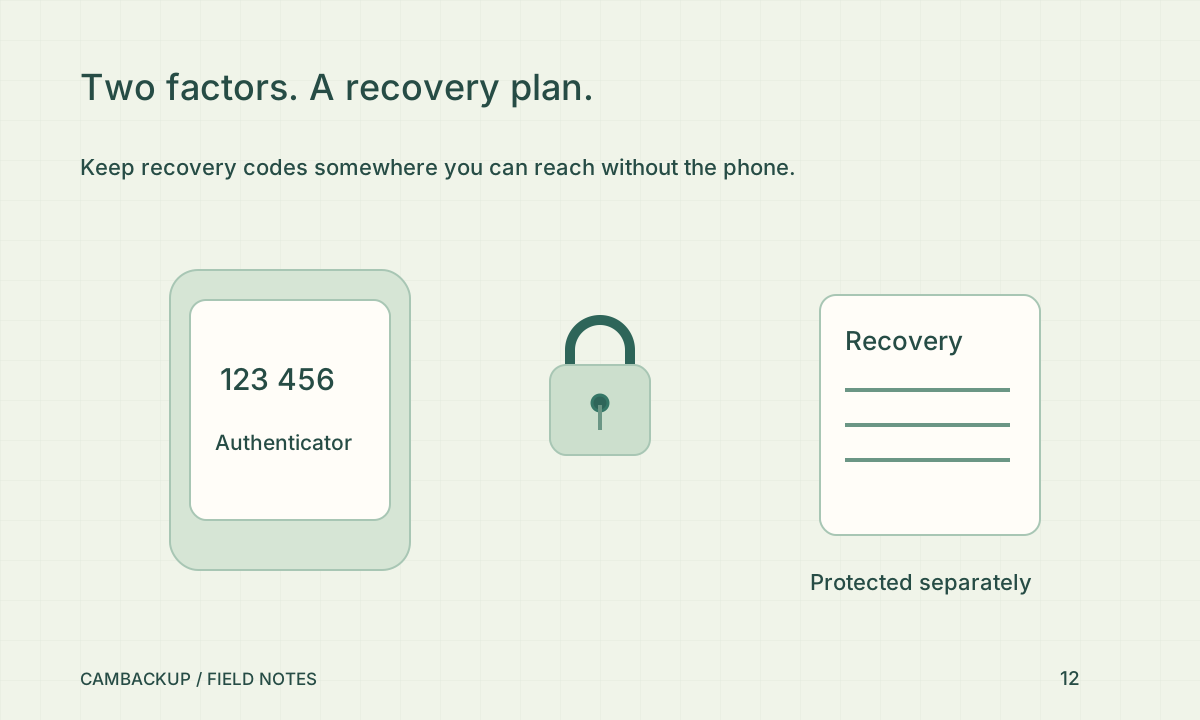
Sign in with your password, an email link or a connected available Google account. Enable authenticator MFA and keep recovery codes somewhere separate from your phone.
Sign-in methods still require MFA when enabled. Protect the devices and email account you use for access.
Follow the setup guide →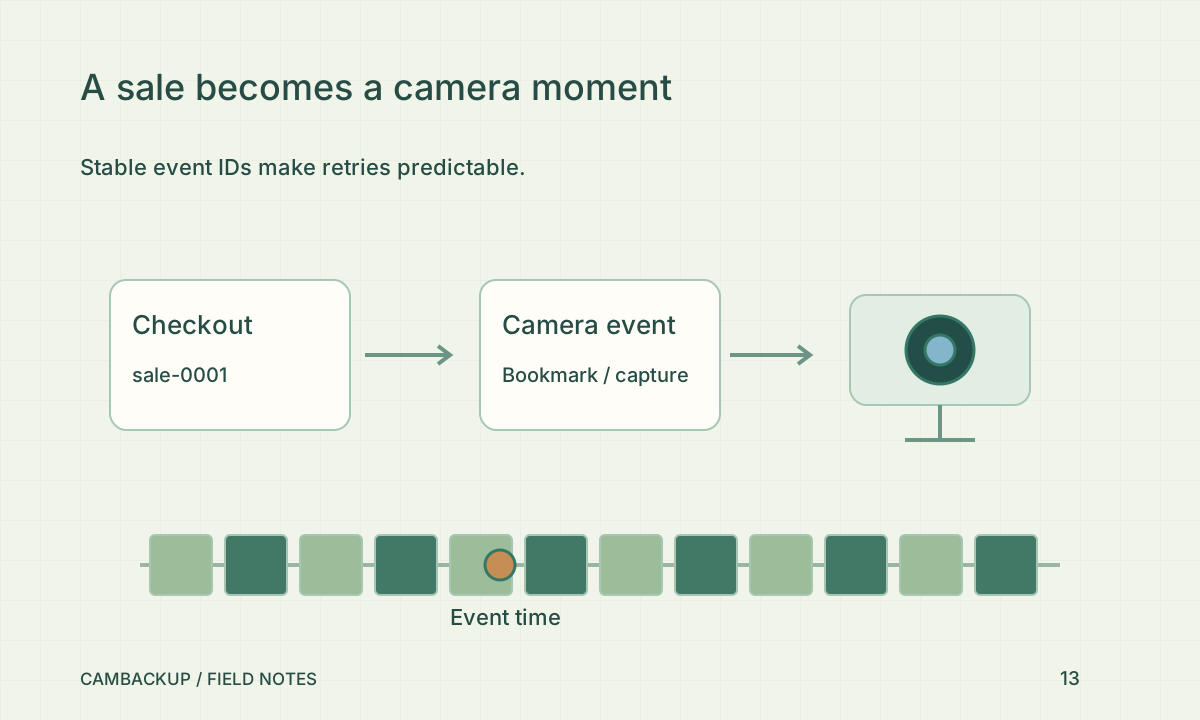
Power and Business include developer tools. A sensor or service can add a named event and request a recording for a set duration. MCP connects those tools to compatible clients.
A capture request does not retrieve earlier video. Confirm the result on the timeline; developer access and recording permissions apply.
Follow the setup guide →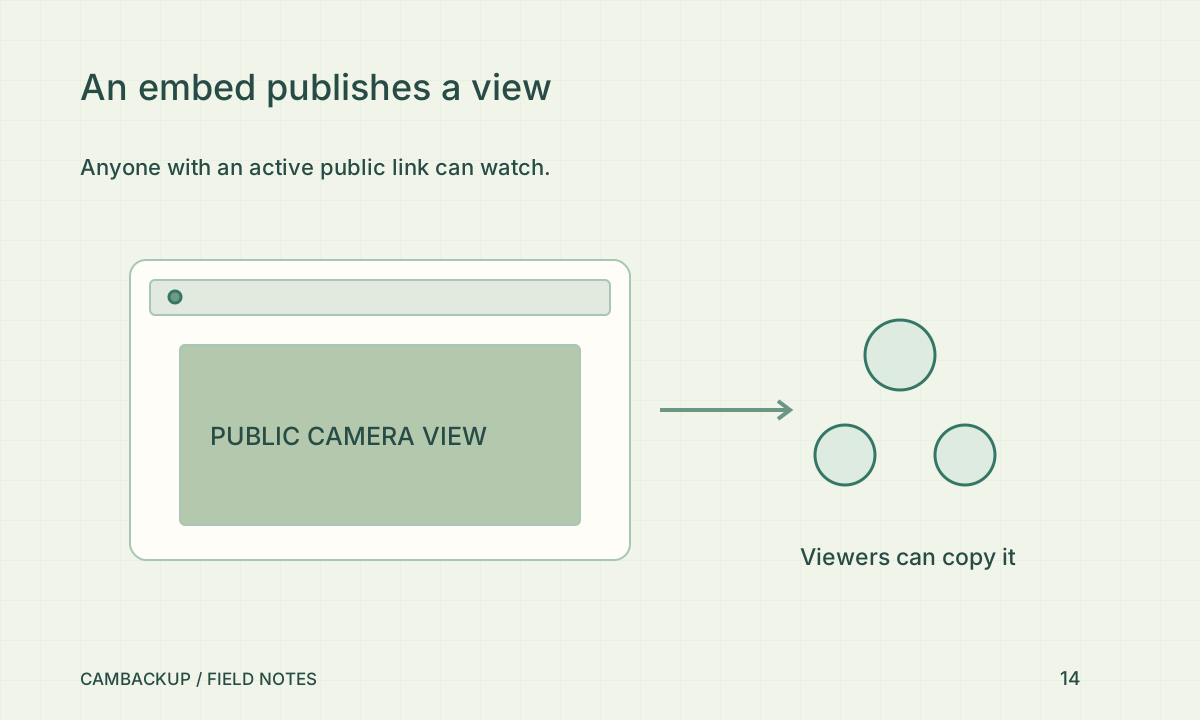
A camera on an eligible Power or Business plan can publish a live widget. Choose an appropriate view, check permission to publish it and disable the link when sharing is no longer needed.
Anyone with the active link can watch and copy the view. Revoking access cannot recall footage already downloaded.
Follow the setup guide →
View your cameras in the browser or install the CamBackup web app on a supported device. Account settings explain installation and let you opt into device alerts.
This is an installable web app, not a native App Store app. Viewing needs internet; alert availability and delivery depend on your browser, operating system and device settings.
Follow the setup guide →MADE FOR OPEN CAMERA STREAMS
RTSP(S) · HTTP(S) · MJPEG · MP4 · HLS · DASH · MPEG-TS · RTMP(S) · SRT
A camera or NVR must expose a supported live feed. ONVIF helps find connection settings; it is not a compatibility guarantee. A gateway cannot unlock a proprietary app-only camera.
It needs a compatible live feed, such as RTSP or supported HTTP video. Enter its address and test it with the connection assistant; ONVIF can help find a profile. A local camera may need CamBackup Gateway. App-only cameras are not automatically compatible. CamBackup records from live feeds; it does not sync an NVR’s existing archive.
Already saved cloud footage remains off-site. Video that never reached the service cannot be recovered by the cloud; the timeline shows gaps. The gateway can record locally when explicitly enabled and while its device and camera remain powered. Local recordings are separate and do not backfill the cloud timeline. Optional emails report a sustained recording outage and recovery.
Use source-pixel privacy masks before new cloud capture and disable audio when it is unnecessary. Masks do not change old footage or the gateway’s separate local recordings. Optional face analysis has additional privacy obligations; detection is not automatic person identification. Read the privacy guide before enabling it, especially in a workplace or public-facing space.
Read the API reference CamBackup Gateway